Back to Dashboard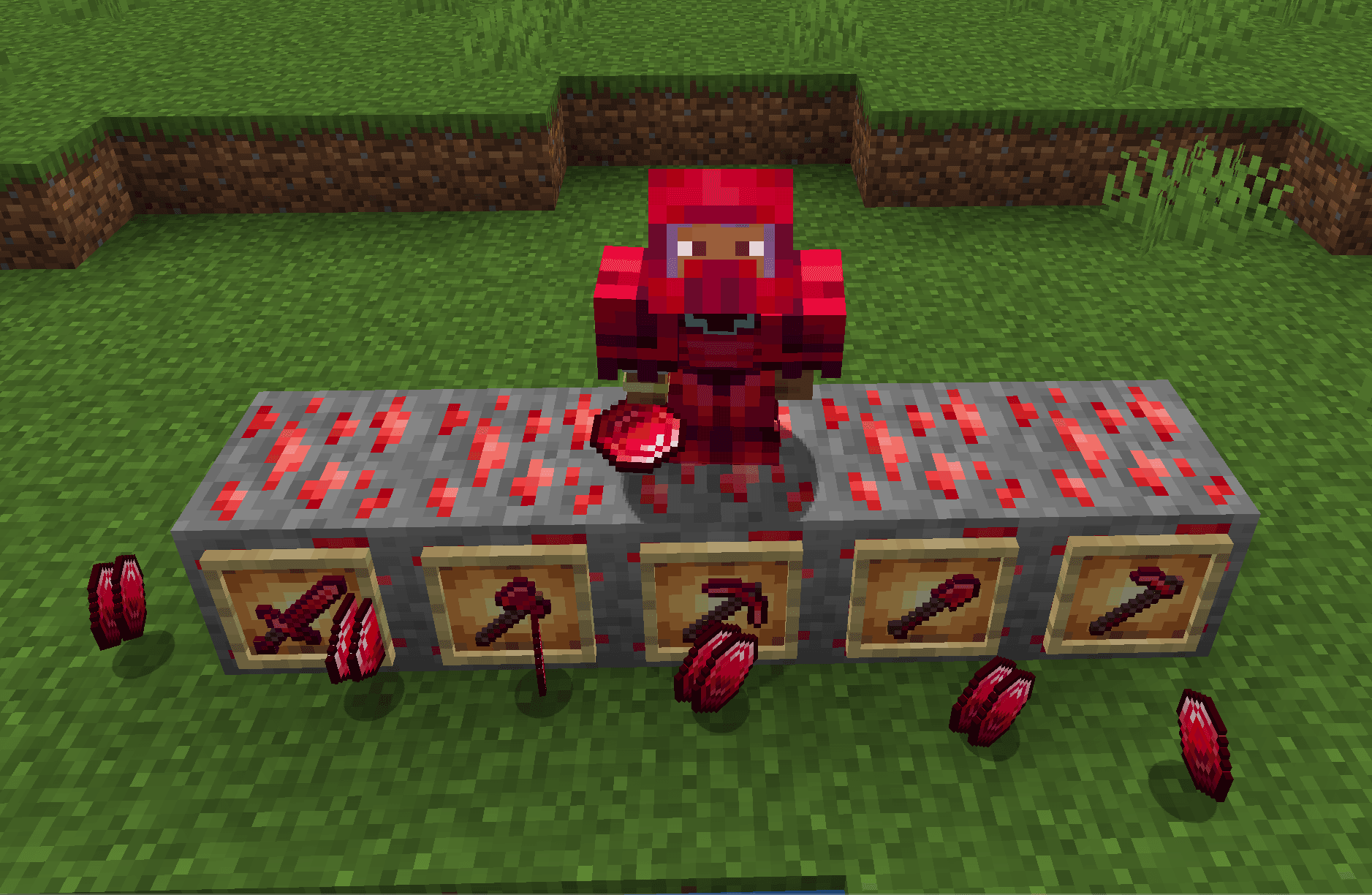
MinecraftModding
Vanilla+ Modding
About the project
Welcome to the Vanilla+ Modding tutorial! This is the first tutorial of a series where we will teach you how to make your own minecraft mod. Additionally this tutorial works with both Mac and Windows.
What you will make in this Tutorial:
- How to setup your enviornment to start
- How to create custom items from materials to armor / tools
- How to create custom blocks / ores
- How to create crafting recipes and loot drops
Further Possibilities
After this tutorial you could easily make your own Vanilla minecraft mod, and have the resources to be able to learn more and make even more indepth mods as well.
Disclaimer
This series assumes a couple things
- You have at least some knowledge on minecraft
- You have experience in Java
- You have an IDE installed and ready (Intellij is what I reccomend for this but others work just fine)
⚠️
Warning
Note: Technically you do not need Minecraft installed on your machine to make this work, as Forge (the mod loader we are using) will download the necessary Minecraft client/server jars and assets from Mojang’s servers. I did not test this however so do this at your own risk.
If you do not have Intellij I highly reccomend you get it, plus you get the full version for free as a student. Reason being I am using Intellij and I will make the tutorial around using Intellij for ease.
Click here to request your license additionally you will sign in using your MSU email and password
And click here to install.
For those still struggling watch this video.
Setup your Enviornment
Setting up your JDK 17
First thing you will need installed is the proper JDK (Java Development Kit) specifically you will need JDK 17
Why JDK 17 specifically?
Because we are using Minecraft version 1.20.1, this version of minecraft uses JDK 17, other JDK versions will not work because of this
Why are we using 1.20.1 when newer versions are out?
Because I want the setup to be as trouble free as possible for the most people. Specifically MacOS seemed to have trouble with newer versions, while this version worked right out of the box for MacOS.
So to download the JDK 17 click here. Download based on your OS and go through all ther prompts it gives you, and you should all set up to go!
⚠️
Warning
I will not cover downloading the JRE or other Java Concepts, if unaware of what the JRE is or do not have prior Java experience I HIGHLY suggest you learn Java before moving forward.
Download the Mod Pack
Next we need to download the actual mod development kit (mdk). Click here to visit the download page.
Once you are there you will see Latest, and Recommended, both should work fine, the safer route of course is Recommended.
In these two boxes you will see
- A big box that says
Installer - Top right box that says
Changelog - Bottom right box that say
Mdk
🚨
Read This
Click the box that says
Mdk, this will take you to a screen that isa large adfrom AdFocus, in other wordsDO NOT CLICK DOWNLOAD IT IS A SCAM / VIRUS. Instead clickSkip Adon the top right corner when it shows up and it will download for you after that.ⓘ
Info
Sadly when modding with minecraft you will likely always have this, whether it be downloading a new mod, resource pack, shaderpack, etc. I highly reccomend a good ad blocker so these never show up.
After you click Skip Ad it will download forge-1.20.1-47.4.0-mdk.zip.
Unpack this folder and rename to whatever you want your mod to be called.
This is optional but here are some things you can delete within your folder:
- changelog.txt
- CREDITS.txt
- LICENSE.txt
- README.txt
Congrats! You are now just 1 step away from starting to code, next step is setting up Intellij
Set up Intellij
Of course if you are using another IDE still go through this section, I will cover changes to gradle.properties, settings.gradle, etc. But do know the actual running of the project and using Gradle is completely on you.
ⓘ
Info
There is a lot of things that go wrong here for different reasons. Try to troubleshoot the errors yourself, if you are stuck feel free to reach out to me via Discord (Johnny Son the 2 Week Projects server).
First off make sure you have Intellij installed, either the full version or Community Edition work just fine.
When you launch Intellij click
OpenSelect the unzipped Mdk to open, go through the prompts, it may ask if you Trust this Project? in which say yes.
Now that it is open, you want to make sure you have the right JDK chosen.
- Go to Settings > Build, Execution, Deployment > Build Tools > Gradle
- Here you will see Gradle JVM, here you will see a JDK selected. Make sure it is
temurin-17as that is what we downloaded.
⚠️
Warning
If you do not see anything selected / there is no option for
temurin-17likely that means something went wrong with your installation. Try the steps again to install the JDK, make sure the installation is in your PATH and JAVA_HOME variables, etc.Now that we have the correct JDK installed lets go back to the Main Window of your project. You will see an Elephant symbol (Gradle logo)
Click on it to open it (if you have not already) then in the window/tab that opens, you should a refresh icon on the top left corner of the tab. When you click that it will build the project
When you do this there should be no errors, you should see a couple warnings but those are not an issue.
💡
Tip
Optional But Helpful:Right click ont the File tree, clickAppearence, then disableFlatten ModulesandFlatten Packages. This will make it so it shows ALL folders instead of combining folders like so
com.folder1.folder2Set up the Mod Project
Congrats! The hardest part of this tutorial should be over, if you managed to get here with no errors or setbacks, not only do I applaud you but I am jealous.
First off navigate to
ExampleMod.java, here you will find a whole lot of jargon that we do not need.Feel free to remove:
- Any variable under
MODIDandLOGGER - The function bodies of
commonSetup,addCreative,onServerStarting, andonClientSetup
The contents of the file should look like this
ExampleMod.java#1
public class ExampleMod
{
// Define mod id in a common place for everything to reference
public static final String MOD_ID = "examplemod";
// Directly reference a slf4j logger
private static final Logger LOGGER = LogUtils.getLogger();
public ExampleMod(FMLJavaModLoadingContext context)
{
IEventBus modEventBus = context.getModEventBus();
// Register the commonSetup method for modloading
modEventBus.addListener(this::commonSetup);
// Register ourselves for server and other game events we are interested in
MinecraftForge.EVENT_BUS.register(this);
// Register the item to a creative tab
modEventBus.addListener(this::addCreative);
// Register our mod's ForgeConfigSpec so that Forge can create and load the config file for us
context.registerConfig(ModConfig.Type.COMMON, Config.SPEC);
}
private void commonSetup(final FMLCommonSetupEvent event)
{
}
// Add the example block item to the building blocks tab
private void addCreative(BuildCreativeModeTabContentsEvent event)
{
}
// You can use SubscribeEvent and let the Event Bus discover methods to call
public void onServerStarting(ServerStartingEvent event)
{
}
// You can use EventBusSubscriber to automatically register all static methods in the class annotated with @SubscribeEvent
.EventBusSubscriber(modid = MOD_ID, bus = Mod.EventBusSubscriber.Bus.MOD, value = Dist.CLIENT)
public static class ClientModEvents
{
public static void onClientSetup(FMLClientSetupEvent event)
{
}
}
}
Updating Mod ID and Gradle files
Mod ID
First up, your Mod ID, as you can see in the file above we have the
MOD_ID variable, this ID is to uniquely identify your mod, it has specific requirements, it can only contain lowercase letters, numbers, underscores, or dashes I named mine to tutorialcraft so keep that in mind when seeing my codejava#2
public static final String MOD_ID = "tutorialmod";
Mod classname
Next we also have the class name and filename being
ExampleMod still, rename these to be like your MOD_ID except the class and file name can contain uppercase lettersI changed mine to be
TutorialCraft. However there is quite a few areas where this is used. The safest way to change the class name is to:highlight the current class name > right click > click refactor.
This way it will be across the file, additionally there will be an error because your file name should be name of the class inside, so make sure to update you file name accordingly.
Fixing Config file
You might have noticed that your config file has errors around these lines:
java#3
new ResourceLocation(itemName)
That is because the new version of Forge has
ResourceLocation use static functions instead of being an objectChange all these instances to this:
java#4
ResourceLocation.tryParse(itemName)
What your files should look like now
⚠️
Warning
Be careful if copy and pasting Idid not include any class import statements
Config.java#5
.EventBusSubscriber(modid = TutorialCraft.MOD_ID, bus = Mod.EventBusSubscriber.Bus.MOD)
public class Config
{
private static final ForgeConfigSpec.Builder BUILDER = new ForgeConfigSpec.Builder();
private static final ForgeConfigSpec.BooleanValue LOG_DIRT_BLOCK = BUILDER
.comment("Whether to log the dirt block on common setup")
.define("logDirtBlock", true);
private static final ForgeConfigSpec.IntValue MAGIC_NUMBER = BUILDER
.comment("A magic number")
.defineInRange("magicNumber", 42, 0, Integer.MAX_VALUE);
public static final ForgeConfigSpec.ConfigValue<String> MAGIC_NUMBER_INTRODUCTION = BUILDER
.comment("What you want the introduction message to be for the magic number")
.define("magicNumberIntroduction", "The magic number is... ");
// a list of strings that are treated as resource locations for items
private static final ForgeConfigSpec.ConfigValue<List<? extends String>> ITEM_STRINGS = BUILDER
.comment("A list of items to log on common setup.")
.defineListAllowEmpty("items", List.of("minecraft:iron_ingot"), Config::validateItemName);
static final ForgeConfigSpec SPEC = BUILDER.build();
public static boolean logDirtBlock;
public static int magicNumber;
public static String magicNumberIntroduction;
public static Set<Item> items;
private static boolean validateItemName(final Object obj)
{
return obj instanceof final String itemName && ForgeRegistries.ITEMS.containsKey( ResourceLocation.tryParse(itemName));
}
static void onLoad(final ModConfigEvent event)
{
logDirtBlock = LOG_DIRT_BLOCK.get();
magicNumber = MAGIC_NUMBER.get();
magicNumberIntroduction = MAGIC_NUMBER_INTRODUCTION.get();
// convert the list of strings into a set of items
items = ITEM_STRINGS.get().stream()
.map(itemName -> ForgeRegistries.ITEMS.getValue(ResourceLocation.tryParse(itemName)))
.collect(Collectors.toSet());
}
}
ExampleMod.java#1
public class TutorialCraft
{
// Define mod id in a common place for everything to reference
public static final String MOD_ID = "tutorialmod";
// Directly reference a slf4j logger
private static final Logger LOGGER = LogUtils.getLogger();
public TutorialCraft(FMLJavaModLoadingContext context)
{
IEventBus modEventBus = context.getModEventBus();
// Register the commonSetup method for modloading
modEventBus.addListener(this::commonSetup);
// Register ourselves for server and other game events we are interested in
MinecraftForge.EVENT_BUS.register(this);
// Register the item to a creative tab
modEventBus.addListener(this::addCreative);
// Register our mod's ForgeConfigSpec so that Forge can create and load the config file for us
context.registerConfig(ModConfig.Type.COMMON, Config.SPEC);
}
private void commonSetup(final FMLCommonSetupEvent event)
{
}
// Add the example block item to the building blocks tab
private void addCreative(BuildCreativeModeTabContentsEvent event)
{
}
// You can use SubscribeEvent and let the Event Bus discover methods to call
public void onServerStarting(ServerStartingEvent event)
{
}
// You can use EventBusSubscriber to automatically register all static methods in the class annotated with @SubscribeEvent
.EventBusSubscriber(modid = MOD_ID, bus = Mod.EventBusSubscriber.Bus.MOD, value = Dist.CLIENT)
public static class ClientModEvents
{
public static void onClientSetup(FMLClientSetupEvent event)
{
}
}
}
Parchment
Mojang obfuscates code before they release a new version of Minecraft, so in order to make modding significantly easier and readable we use ParchmentMC mappings
ⓘ
Info
Parchment mappings are the standard, although Mojang does come out with their own mappings they are usually incomplete which is why Parchment mappings is the more commonly used ones
In order to use ParchmentMC mappings we have a couple steps to use
Add this segment into
settings.gradleTutorialCraft.java#6
 pluginManagement {
     repositories {
         maven { url = 'https://maven.parchmentmc.org' } // Add this line
     }
 }
Update these segments in your
build.gradlegroovy#7
 plugins {
     // This should be below the net.minecraftforge.gradle plugin
     id 'org.parchmentmc.librarian.forgegradle' version '1.+'
 }

  minecraft {
    // update this line (first line under minecraft)
     mappings channel: 'parchment', version: '2023.09.03-1.20.1'
 }
Lastly in
gradle.properties update these two linesproperties#8
mapping_channel=parchment
mapping_version=2023.09.03-1.20.1
Feel free to change any of these in
gradle.properties as well. This is wear you determine the author, version, description, etc.Here is what I put for mine as an example
properties#9
# The license of the mod. Review your options at https://choosealicense.com/. All Rights Reserved is the default.
mod_license=All Rights Reserved
# The mod version. See https://semver.org/
mod_version=1.0.0
# The group ID for the mod. It is only important when publishing as an artifact to a Maven repository.
# This should match the base package used for the mod sources.
# See https://maven.apache.org/guides/mini/guide-naming-conventions.html
mod_group_id=com.example.tutorialcraft
# The authors of the mod. This is a simple text string that is used for display purposes in the mod list.
mod_authors=JohnStouffer
# The description of the mod. This is a simple multiline text string that is used for display purposes in the mod list.
mod_description=Make your own MC Mod! \nBasic mod that adds a few items, mobs, and blocks.
Congrats!
You are finally done configuring everything!
To make sure that all that you have done is working run this command in your terminal
bash#10
./gradlew genIntellijRuns
⚠️
Warning
You may have a ton of warnings, that is okay, we just want to make sure we still have that
BUILD SUCCESSFULThis command will bring up the a bunch of different things you can run in your right side gradle tab. Specifically runClient is what we will use to test our mod. Feel free to run this too make sure all is working.
Now it is time to actually to do some modding!
First up we are going to make items
Make First Item
I reccomend you make your own items that you want instead of copying my items, however this requires you to make your artwork so I will still give you all my items.
First you need to make a new folder inside your mod folder
ie. if you mod is
tutorialcraft then put it in com.example.tutorialcraft folderⓘ
Info
NOTE: Feel free to change it the name of the com and example folders, I chose not to as it adds another way to get an error here and it changes nothing but the name.
name this folder
itemsin this items folder create the class
ModItems.java this is a central registry class to keep track of all items that your mod wants to add.First up, Make a DeferredRegister of the Forge
Items inside of the ModItems classjava#11
public static final DeferredRegister<Item> ITEMS =
    DeferredRegister.create(ForgeRegistries.ITEMS, TutorialCraft.MOD_ID);
What is a DeferredRegister?
A DeferredRegister is Forge's helper to add "things" its registry, specifically right now we are using it to add items.
Specifically it allows us to make new items and then add them to the registry
ForgeRegistries.ITEMS right now is all the built in items before we add this mod, and this is where we add all of our items to be in the game.We make it
static so there’s only one copy shared by the whole mod, and final so it never gets replaced.Making the item variable
Each item is a
RegistryObject which is Forge's wrapper around anything that you register into the gameHere is an example to add a Ruby item into the game
ModItems.java#12
public static final RegistryObject<Item> RUBY = ITEMS.register(
    "ruby",                                 // The name of the item
    () -> new Item(new Item.Properties())); // Passing the Supplier
What does the second line do?
Forge wants us to pass a Supplier to create an item, rather than just the item itself. Additionally items have many different properties. Calling
Item.Properties() calls all of the default properties of a typical item.You are able to override this default properties using chaning functions as well. We will discuss that more later.
Register using the ModBus
In
TutorialCraft.java we have modEventBusWhat is modEventBus?
- An event bus that is dedicated for startup events of a mod
- This makes it useful to register things into the bus
While above we registered the item into the register, this portion is registering the items as a startup event to be added when the game starts.
So in
ModItems.java we are going to add a function to register our ITEMS in a startup eventModItems.java#13
// Add this somewhere within the ModItems class
public static void register(IEventBus eventBus) {
    ITEMS.register(eventBus);
}
Next go back to
TutorialCraft.javaInside of the constructor we need to register the ModBus with the new items
ModItems.java#14
public TutorialCraft(FMLJavaModLoadingContext context)
{
    IEventBus modEventBus = context.getModEventBus();

    ModItems.register(modEventBus); // <- Add this line
Adding the texture
First we need to put the actual png of the item texture in the correct spot.
You should have a
resources folder in main / srccreate sub directories so your file tree looks like this
TutorialCraft.java#15
src/
└─ main/
   └─ resources/
      └─ assets/
         └─ tutorialcraft/
            ├─ lang/
            │  └─ en_us.json
            ├─ models/
            │  └─ item/
            │     └─ ruby.json
            └─ textures/
               └─ item/
                  └─ ruby.png
💡
Tip
If you forgot to turn off flattening for your file tree I reccomend you do it here, I go over it in the beginning of the tutorial
now navigate to
ruby.json and paste this isjson#16
{
  "parent": "item/generated",
  "textures": {
    "layer0": "tutorialcraft:item/ruby"
  }
}
Here is what each part of this json is saying
"parent" : "item/generated"basically tells the game to use the built in item/generated model for this item. Which is Mojang’s default 2D flat item model (used for things like minerals, food, enchanted books, etc.) It tells Minecraft to render this as a flat texture that always faces the player, with optional multiple texture layers."layer0": "tutorialcraft:item/ruby"basically tells the game that the base texture layer is the ruby item in our mod
Next step add to the
en_us.json fileThis is what minecraft uses to translate the items within the mod to different languages.
I am just going to make the English USA translation. Feel free to add more.
json#17
{
  "item.tutorialcraft.ruby": "Ruby"
}
Now when look at the Ruby item in game it will be whatever you put as the value here.
Lastly here is a link to the ruby.png. Download this and move it to
resources/assets/tutorialcraft/textures/item/Add the item to your menu
Last but not least we need to add it to the creative menu
We have a function called
addCreative in TutorialCraft.java that does just that for us.java#18
private void addCreative(BuildCreativeModeTabContentsEvent event)
{
    // just adding this to the Ingredients tab in the creative menu
    if (event.getTabKey() == CreativeModeTabs.INGREDIENTS) {
        event.accept(ModItems.RUBY);
    }
}
Congrats!
You have now made your own item!
There is a lot of moving components, but thankfully, more additions from here on out this tutorial will follow a similar process but with everything already set up.
Challenge Item
It is time to to make your own item without help!
Here is the challenge:
Make a Sapphire item, here is the png to it, other than that here is some other things I want you to do:
- It needs to be fire resistant
- stacks of Sapphires can only go up to 16
- Make its durability 500
Try this on your own with some help from documentation, if you can't feel free to look at the hint below, I will paste my solution for how to make the item have these traits below.
HINT:
TutorialCraft.java#19
Remember the chaining method I talked about earlier when making our Ruby? This applies here, knowing that now look at the documentation and try to implement it.
SOLUTION
java#20
// Use chaining to edit the properties of each item
public static final RegistryObject<Item> SAPPHIRE = ITEMS.register("sapphire",
        () -> new Item(new Item.Properties()
                .fireResistant()
                .stacksTo(16)
                .durability(500))
);
Start up the game!
Now choose the
runClient configuration and run the game, you should check inside of the Ingredients tab and see both a Sapphire and a Ruby thereMake Your Own Creative Tab
We do not just want to add everything to the Ingredients tab, lets make tab that is purely for your mods items.
Setup for the tab
Make a new class inside of the the
/items folder and call it ModCreativeModeTabs.javaLike the items above we need to add a DeferredRegister into this class, this time of the Creative Mode Tabs additionally we need to make a register function call for the modEventBus
ModItems.java#21
public static final DeferredRegister<CreativeModeTab> CREATITVE_MODE_TABS =
    DeferredRegister.create(Registries.CREATIVE_MODE_TAB, TutorialCraft.MOD_ID);

public static void register(IEventBus eventBus) {
    CREATITVE_MODE_TABS.register(eventBus);
}
Head back to the main mod class
TutorialCraft.java and add the line to register the Creative Mod Tab with the mod event bus around the same place you did for the ModItemsModCreativeModTabs.java#22
ModCreativeModeTabs.register(modEventBus);
Making the Tab
Just like before we are making a
RegistryObject to be added, this time it is a CreativeMobTab registry objectFor our
Supplier parameter, we are gonna use the builder pattern with using the CreativeModTab.builder() functionWith this we can add customize it to our liking, here is what we are gonna customize for this tutorial
- Icon: The icon that show up for the tab
- Title: What the tab is called
- Display items: the items you want into the tab
to do this reference the the function below
java#23
public static final RegistryObject<CreativeModeTab> TUTORIAL_TAB = CREATITVE_MODE_TABS.register("tutorial_tab",
    () -> CreativeModeTab.builder()
        // add a icon to the tab with that being the Ruby item we made
        .icon(() -> new ItemStack(ModItems.RUBY.get()))
        // add a title to the tab
        .title(Component.translatable("creativetab.tutorial_tab"))
        // display the Ruby and Sapphire we just made
        .displayItems((pParameters, pOutput) -> {
            pOutput.accept(ModItems.RUBY.get());
            pOutput.accept(ModItems.SAPPHIRE.get());
        })
        .build());
Notice the title that hasComponent.translatable("creativetab.tutorial_tab")this is we are making the title dynamic based on the language just like with the Ruby and Sapphire. Inen_us.jsonadd the variable inside ("creativetab.tutorial_tab") and set the value as whatever you want to call it
Now any time we have a new item on our mod we can add it onto the tab
Make First Block
Now it is time to add our own blocks. Specifically I am going to be making the ores for the Ruby and Sapphire.
First we need a new folder in the
tutorialcraft folder called block. (so tutorialcraft should encase both the /items folder and now the block folder)within this
block folder make a new class called ModBlocks.javaWe follow the same two steps as usual
- Make the
DeferredRegisterof Forge'sBLOCKSinstead ofITEMS - create a
registermethod to register themodEventBus
I will let you do that part yourself and show the whole file below.
Next we need two more methods,
registerBlock and registerBlockItemModCreativeModTabs.java#24
public class ModBlocks {

    public static final DeferredRegister<Block> BLOCKS =
            DeferredRegister.create(ForgeRegistries.BLOCKS, TutorialCraft.MOD_ID);

    // Register a block: takes care of registering it with the forge blocks, as well as calling to register
    // the block as a item as well
    private static <T extends Block> RegistryObject<T> registerBlock(String name, Supplier<T> supplier) {
        RegistryObject<T> block = BLOCKS.register(name, supplier);
        registerBlockItem(name, block);
        return block;
    }

    // method to make the blocks as items as well
    private static <T extends Block> void registerBlockItem(String name, RegistryObject<T> block) {
        ModItems.ITEMS.register(name, () -> new BlockItem(block.get(), new Item.Properties()));
    }

    public static void register(IEventBus bus) {
        BLOCKS.register(bus);
    }
}
Make sure to add this line in the
TutorialCraft.java class as well now that we have our register methodModBlocks.java#25
public TutorialCraft(FMLJavaModLoadingContext context)
{
    IEventBus modEventBus = context.getModEventBus();

    ModCreativeModeTabs.register(modEventBus);
    ModItems.register(modEventBus);
    ModBlocks.register(modEventBus);
Why are we registering the blocks as items?
Because blocks only exist in the world itself, those blocks you see in your inventory and creative menu are actually BlockItems. So we need to register them not only as blocks for the world enviornment, but also items for the user to be able to carry around and select
Making Ruby Ore
Now it is time to actually make the block. The process is incredibly similar to making the items
- Make a registry object of the block
- provide the name identifier and supplier function
- edit its properties
TutorialCraft.java#26
public static final RegistryObject<Block> RUBY_ORE = registerBlock(
    "ruby_ore",
    () -> new Block(BlockBehaviour.Properties.copy(Blocks.DIAMOND_ORE)) // we want this to mock diamond ores properties
);
simple as that, next we need to update
en_us.json to translate ruby_ore, additionally you will need to make new folders in the resources folder for the Ruby Ore block json file, item json file, and texture. Here is what your file tree for resources should look like nowModBlocks.java#27
src/
└─ main/
   └─ resources/
      └─ assets/
         └─ tutorialcraft/
            ├─ lang/
            │  └─ en_us.json
            ├─ models/
            │  ├─ item/
            │  │  ├─ ruby.json
            │  │  └─ ruby_ore.json
            │  └─ block/
            │     └─ ruby_ore.json
            └─ textures/
               ├─ item/
               │  └─ ruby.png
               └─ block/
                  └─ ruby_ore.png
One intersting thing is that we need to add this ores blockstate
What is a blockstate?
A block can have different appearances depending on its state, think copper how it changes color overtime. Things like Ores only have one state which make it rather easy thankfully.
To add the blockstate we need a new folder in our
assets/tutorialcraft folder titled blockstates/Creaate a new file called
ruby_ore.json and add this injson#28
{
  "variants": {
    "": { "model": "tutorialcraft:block/ruby_ore" }
  }
}
Again, this just clarifies that we have one variant so no matter the state, display it like this
Here is what the
block/ruby_ore.json should look like:json#29
{
  "parent" : "minecraft:block/cube_all",
  "textures" : {
    "all" : "tutorialcraft:block/ruby_ore"
  }
}
Since ores have the same texture around the entire block, we can take one image and apply it to every side, hence why the parent is
"minecraft:block/cube_all"Inside of
item/ruby_ore.json should look like:block/ruby_ore.json#30
{
  "parent" : "tutorialcraft:block/ruby_ore"
}
Since we already have the block declared, we can reference then when declaring the item version.
Next in
en_us.json and any other language you put down, make sure to put:item/ruby_ore.json#31
"block.tutorialcraft.ruby_ore" : "Ruby Ore"
Next here is the png of the Ruby Ore. Put this in the
textures/block folderLastly we can add the item of the Ruby Ore in CreativeTab by calling this inside of
displayItems methoden_us.json#32
pOutput.accept(ModBlocks.RUBY_ORE.get());
Run the client
Now make sure you run the program using
runClient to verify the block existsIf all looks good then congrats! You now have you first block
Just like items adding blocks usually follows this pattern with some variation in what you are creating
Challenge Block
Now lets make Sapphire Ore!
Complete the same steps above except for the sapphire ore, and of course here is the ore texture.
However there a couple things I want you to change to make this ore more interesting
- make this ore to have the friction of ice, so you walk around like you are sliding
- make the sound of the ore sound like Amethyst
- Edit the strength of this ore
- Set destroy time to 6.0
- Set explostion resistance to 6.5
🚨
Read This
I will NOT give a solution to this one, I will provide a hint underneath this dialog box, but you should able to comfortably figure out how to do this given thisdocumentation, and using Google (try your best not to use AI right now)
ModCreativeModeTabs.java#33
Remember the chaining you did for the item properties?
Try that again, just typing a period should show you a list of functions you can use as well.
Make your Own Tools
Now lets make our own tools!
We have made items before and as I said earlier items are made for your inventory and creative mode tabs, so tools / weapons are also items, but they are more than just in your inventory, so they have their own subclasses. It is rather simple but instead of calling say
Item.Properties() you would call SwordItem.Properties().Additionally there are different ways to customize these items that I will show as well.
I am going to make a sword item and show you what you need to know from it, you will then be able to make the rest of the toolset
Creating a sword
We need to add these for every new item
- Add the png for the item texture
- add the item ID to its language value in
en_us.json - make a json file for the items appearance
- add the item + register it
- add it to the creative mode menu
I will go through a small overview of each step again going more in detail on new / different stuff, but you should be getting pretty comfortable with creating your own items now
Add the png for the item texture
Here is the link to the ruby sword png we are using. Download it then add it to
resources/assets/tutorialcraft/textures/itemAdd the item ID to its language value
Create a new variable in the
resources/assets/tutorialcraft/lang/en_us.json fileFor example:
json#34
"item.tutorialcraft.ruby_sword" : "Ruby Sword",
Make the json file for the items appearance
This will look nearly identical to the ones you made for Ruby and Sapphire, there is only one key difference: tools and weapons of handheld items, not flat generated ones
If you do not understand what I said above, I suggest you try to Google for the answer.
If you are struggling to find anything read this but do give a good shot to find resources because there are many out there.
HINT:
Add the item and register it
Alright now we are coding it in
Since we already have our
ModItems.java class we can add it to that and reduce creating new register functions and all that fun stuff.⚠️
Warning
TRY TO DO THIS YOURSELF: I have given enough hints I am confident you are able to figure out this code on your own using Google and the documentation. I will show what I have below still (WITH ERRORS), but please try it on your own.
java#35
// Add this into your ModItems.java
public static final RegistryObject RUBY_SWORD   = ITEMS.register("ruby_sword",
    () -> new Sword(
        DiamondTier,            // Tier of the weapon (Netherite being the best and Wood being the worst)
        3,                      // Attack Damage Modifier. (final damage = tier damage + this number)
        -2.4,                  // Attack speed modifier (lower = slower, -2.4F is standard for a sword)
        new Item.properties
    )
);

// Add this in ModCreativeModeTabs.java to add it to the inventory
pOutput.accept(ModItems.RUBY_SWORD.get());
TIP: If you go to .minecraft/versions/<version>/<version>.jar on your own system you can find all of these folders and assets, so you can see the json files of how certain items are made
{ .prompt-tip }
Create the rest of the set
Now that you have created items, a sword, and have access to resources within your own systems and on google, do your best to make the rest of the armor set. Here is the art if you need it.
Make your Own Armor
We are are the last part of the instruction section of this tutorial. Last step before we leave it up to you... Lets make some armor!
I am going to go over the code in
ModItems only, the rest you should be more than fine doing on your own through previous examples, documentation, google, etc.java#36
public static final RegistryObject<Item> RUBY_HELMET = ITEMS.register(
    "ruby_leggings",
    () -> new ArmorItem(
        "ruby",                  // material used IMPORTANT FOR THE TEXTURES
        ArmorItem.Type.HELMET,   // Type of armror
        new Item.Properties()));
Wearing the armor
As you can see above putting the material used as IMPORTANT, here is why:
To find the texture for when you WEAR the armor it will take this material name then add "_layer_1.png" and "_layer_2.png" to find them. Therefore the material name matters as it NEEDS TO LINE UP WITH YOUR TEXTURE PNG FILE NAMES
Where do we put the files for the textures of what we are wearing?
In your
textures/ folder create a new folder called models/ then inside of models make another folder called armor/. This is where forge will look for the textures / png of the armor you wear. Here is a link to the two pngs for you to add.Finish the armor set
Now you should have more than enough resources to be able to make the rest of the armor set
Feel free to finish it up or make a different one with Sapphire. The sky is the limit.
Challenge Tasks
Congrats!
You are officially done with the instruction part of this tutorial!
Now that you are done you should confidently be able to:
- Set up the modding enviornment
- Make new items within the game
- create new blocks within the game
- Create new armor and tools within the game
Of course there is WAY more to do and to encapsulate all Vanilla modding into one tutorial is impossible and impractical. So now I encourage you to keep going without a tutorial. Below are some first steps on what you can try next
Crafting Recipes
- None of the armor or tools are craftable right now, but lookup how to make them craftable, there is plenty of information within the documentation and forums
Loot Tables
- If you mine those blocks you made they will drop nothing. Create loot tables so that they drop what you want them to drop.
Armor Trims
- Modern Minecraft has armror trims of all sorts. Right now they can't be used on your new armor. Make it so you can use it.
Make your own Tiers for Weapons and Armor
- Why make it so are your weapons and armor are Diamond or Netherite tier. Make your own tier
Add your own things
- Most importantly, this is YOUR MOD add what YOU want to add. Make Minecraft how YOU want to play it.
Thank you so much for making it this far, and I hope this tutorial helped you in some way. Keep on modding!