Back to Dashboard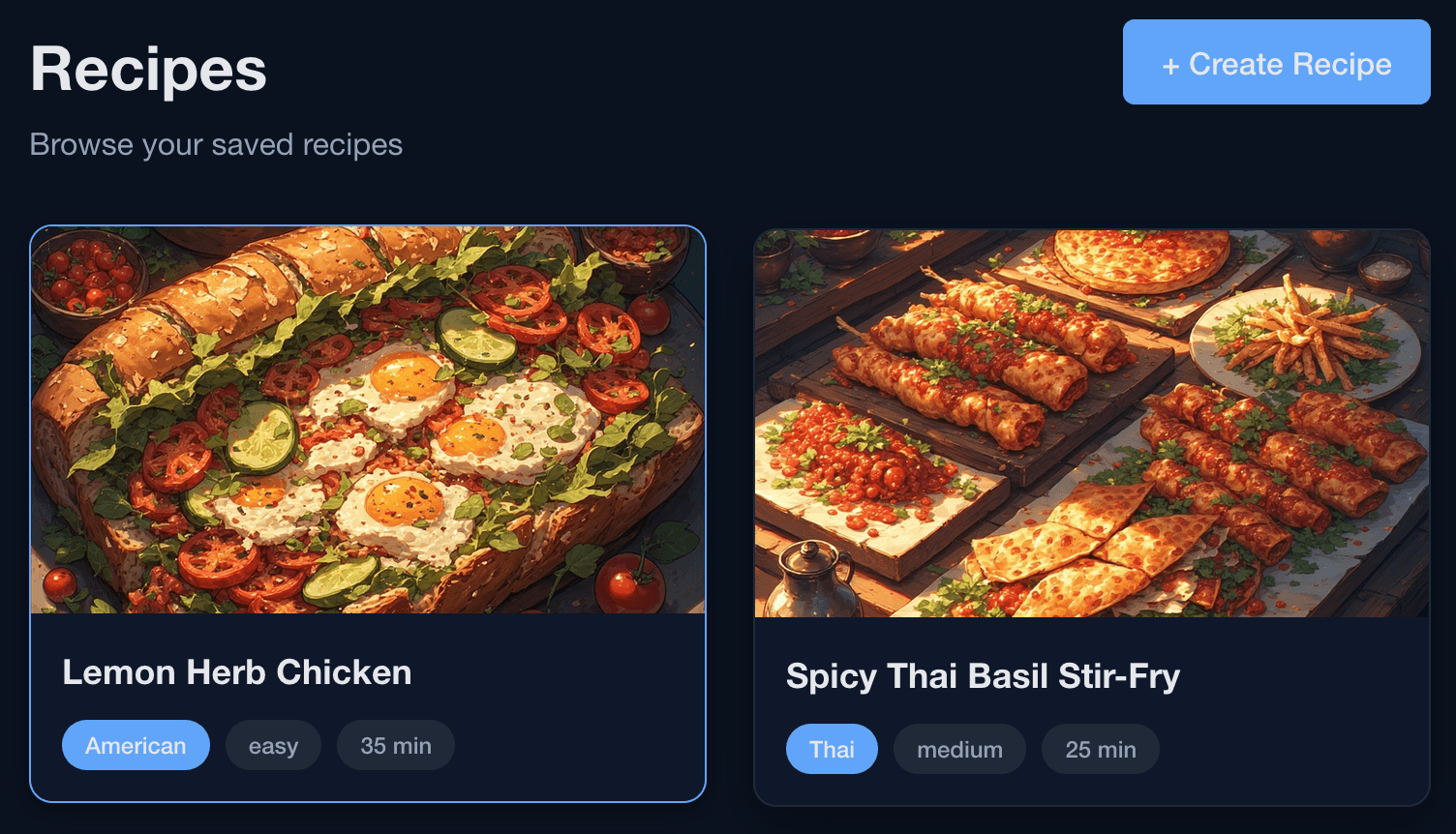
React
React Recipe App
About the Project
Welcome to the React Recipe Storage App tutorial! Through this project, you will learn the core fundamentals of React that every developer needs to know.
What you will learn in this Tutorial:
- How to create and structure a React project
- Understanding components and why we organize code the way we do
- Managing data with
useState - Running code when needed with
useEffect - Navigating between pages with the React Router
- Passing data between components with props
- Creating reusable logic with custom hooks
What you will make:
By the end of this tutorial, you will have a fully functional Recipe Storage App where users can browse recipes, create new ones, and view detailed recipe information. The biggest limitation here is there is no backend currently, a tutorial later on may cover on how to make a backend + database using the cloud but for now its best to learn front end first.
Further Possibilities:
Once you complete this tutorial, you can expand the app with features like searching/filtering recipes, editing existing recipes, or even connecting it to a real database. The skills you learn here are the foundation for everything you'll build in React.
Disclaimer
This tutorial assumes a couple of things:
- You have basic knowledge of JavaScript (variables, functions, arrays, objects)
- You have Node.js installed on your computer
- You have a code editor like VS Code
If you don't know JavaScript yet, you will not be able to learn properly in this tutorial, we reccomend Falling Sand 1 and 2 + Syllabus to CSV first. This tutorial will explain React concepts as if you're new to them, but JavaScript fundamentals are required.
One More Thing
React is an incredibly confusing experience, even for those experienced in it. At imagine everyone who is running Educational is more than equipped to help with anything React related
If you ever feel stuck or confused during this tutorial, please pull us aside during an Educational meeting, or dm me on discord
squirmywhale21 --> Johnny [Educational Dir] on the imagine server.Setup the Project
We'll be using Vite to create our React app.
ⓘ
Info
Vite is a modern build tool, this makes setting up React projects incredibly fast. there are other alternatives such as
create-react-appbeing the old and official way to do so, however using Vite proves to be best experience as of right now. If you are more curious to why we use Vite here is, here is a link to an articleOpen a terminal, navigate to where you want your project, and run:
console#1
npm create vite@latest
You will be given prompts. Here are the settings I selected, if you are more comfortable with TypeScript then feel free to chose that but I will not be going over types here:
console#2
✔ Project name: … recipe-storage-app
✔ Select a framework: › React
✔ Select a variant: › JavaScript
Now cd to go into your new project folder
After you do that you use
npm installconsole#3
cd recipe-storage-app
npm install
What does npm install do?
When you run npm install, you're telling Node.js to look at the package.json file and install all the packages (libraries) that your project needs to work. These packages get downloaded and stored in a folder called
node_modules/. You'll notice this folder is quite large, It contains React and all the other tools your project depends on, you can delete this folder and get all of it again using npm install or npm i.ⓘ
Info
You should NEVER edit files inside node_modules/ directly, and you don't need to include it if you share your project (that's why it's automatically in .gitignore). Anyone who downloads your project can just run npm install to get their own copy that works for their machine.
We also need React Router for navigation between pages. Install it now:
console#1
npm install react-router-dom
This command installs a specific package called
react-router-dom and adds it to your package.json file. React Router is what lets us have multiple "pages" in our app without actually reloading the browser, it's a very important part of React applications.Now start your development server using:
console#1
npm run dev
Visit http://localhost:5173 to see the premade page.
NOTE: A great part about React is that when you change your code, the browser will automatically update. No need to restart the server for every change.
Understanding the Folder Structure
Before we start coding, let's set up a proper folder structure. This is not strictly necessary, but it's considered best practice and will make your code much easier to maintain as your project grows.
Delete everything inside the
src/ folder, then create this structure:code#4
recipe-storage-app/
├── public/
│   └── assets/ --> THESE CAN ALL BE FOUND IN THE LINK BELOW
│       ├── dummy-recipes/
│       │   └── recipes.json
│       └── food-images/
│           ├── food1.jpg
│           ├── food2.jpg
│           └── ... (more images)
├── src/
│   ├── components/
│   │   ├── common/
│   │   │   ├── EmptyState/
│   │   │   ├── Loading/
│   │   │   └── Pill/
│   │   └── recipe/
│   │       ├── ImageSelector/
│   │       ├── RecipeCard/
│   │       ├── RecipeDetail/
│   │       └── RecipeForm/
│   ├── constants/
│   │   └── recipes.js
│   ├── hooks/
│   │   └── useRecipes.js
│   ├── pages/
│   │   ├── CreateRecipe/
│   │   ├── FeedPage/
│   │   └── ViewRecipe/
│   ├── utils/
│   │   └── helpers.js
│   ├── App.jsx
│   ├── App.css
│   ├── index.css
│   └── main.jsx
├── index.html
└── package.json
Why organize it this way?
components/Reusable blocks of code, things you may need in multiple places.components/common/- Generic components used anywhere (buttons, loaders, etc.)components/recipe/- Components specific to recipesconstants/- values that you will be calling FREQUENTLY in your projects that either don't changehooks/- where to put your custom hooks, we will talk about this later.pages/- Full page components that represent different routes, this is the main UI / the layout of the apputils/- folder for helper functionspublic/assets/- a place to put our static files, fonts, images, static data, all goes here.
There are different ways to organize your app and no "correct" way, however if you ever use React professionally, it may be organized in this sort of style (except with more).
Getting the Assets
To make your life easier + shortening this tutorial I have prepared a repository that you can download for all the assets you will need, including pictures, json files, and css files.
This includes:
- All CSS files for styling the components and pages
- Food images for the recipe cards
- A
recipes.jsonfile with dummy data
ⓘ
Info
Yes I am aware all the food images are AI lol, easy way to get placeholders when starting out an app
I will not be covering CSS in this tutorial. Feel free to use my CSS files, but I encourage you to try styling it yourself for extra practice!
Place the food images in
public/assets/food-images/ and the recipes.json in public/assets/dummy-recipes/.Hello World - Your First Component
Let's start simple. Create these two files in the
/src folder:First
main.jsxjsx#5
import { StrictMode } from 'react'
import { createRoot } from 'react-dom/client'
import App from './App.jsx'
import './index.css'

createRoot(document.getElementById('root')).render(
  <StrictMode>
    <App />
  </StrictMode>
)
Then
App.jsxjsx#6
function App() {
  return (
    <h1>Hello World!</h1>
  )
}

export default App
Go to your browser. You should see "Hello World!" on the page.
What just happened?
main.jsxis the entry point of our project, it finds the<div id="root">inindex.htmland puts our React code/app inside of it for us.App.jsxis our main component, it's a function that returns what we want to show on screen.- The
export default Applets other files import and use this component, this is very important!
Setting Up React Router
Our app needs three pages:
- Feed Page (
/) - Shows all recipes - Create Recipe (
/create) - Form to add a new recipe - View Recipe (
/recipe/:id) - Show the details of said recipe
First, update
main.jsx to include the Router:src/main.jsx#7
import { StrictMode } from 'react'
import { createRoot } from 'react-dom/client'
import { BrowserRouter } from 'react-router-dom'
import App from './App.jsx'
import './index.css'

createRoot(document.getElementById('root')).render(
  <StrictMode>
    <BrowserRouter>
      <App />
    </BrowserRouter>
  </StrictMode>
)
What is BrowserRouter?
Think of
BrowserRouter as a way for our app to know what the UI should look like. It watches the URL in your browser and helps React know which "page" to show. By wrapping our entire App with it, we're saying "Hey React, pay attention to URL changes!" But why need that? In other JavaScript projects you just type the html file into the url to get it?. Well because React is actually, a one page appOne Page App
Before we continue, it's important to understand something fundamental about React: it's a single-page application framework.
What does "single-page" mean?
In a traditional website, when you click a link to go to another page, your browser:
- Sends a request to the server
- The server sends back a completely new HTML file
- Your browser throws away the old page and loads the new one
- You see a brief flash or loading as this happens
With React, things work differently. When you first visit a React app, the browser loads one HTML file. After that, React modifys the Virtual DOM when you "navigate" to a different page:
- The URL in your browser changes
- React swaps out the components on screen
- No new HTML file is ever loaded, the internal structure of the Virtual DOM changes
What is the Virtual DOM?
The DOM (Document Object Model) is the browser’s in-memory representation of a web page. When the browser reads an HTML file, it turns that markup into a tree of objects that JavaScript can read and change. React doesn’t rewrite the HTML file itself; it updates this DOM tree, changing what you see on screen by adding, removing, or updating elements efficiently.
Still confused?
We just threw a whole lot of info at you. If you feel confused or overwhelmed that is more than fine! React is like a whole different language rather than a framework, feel free to stop here and process, reread this section, or alternatively if you learn better visually here are some videos that may help you.
Why do this?
- Speed - Navigating between pages feels instant because we're not waiting for new files to load
- Smooth experience - No page flashes or reloads
- State preservation - Data can persist as you move around the app
The catch:
Since there's really only one page, the browser doesn't naturally know how to handle different URLs like
/create or /recipe/5. That's why we need React Router - it watches the URL and tells React which components to show.ⓘ
Info
This is why when you build a React app and try to directly visit a URL like
/createwithout proper server setup, you might get a 404 error. The server is looking for a file called/create/index.htmlthat doesn't exist! During development, Vite handles this for us automatically.Creating Components
Now let's create placeholder pages. Make these three files:
src/App.jsx#8
export default function FeedPage() {
  return <h1>Feed Page - All Recipes</h1>
}
src/App.jsx#8
export default function CreateRecipe() {
  return <h1>Create Recipe Page</h1>
}
src/App.jsx#8
export default function ViewRecipe() {
  return <h1>View Recipe Page</h1>
}
Now update
App.jsx to use these routes:src/main.jsx#9
import { Routes, Route } from 'react-router-dom'
// ADDED IMPORTS
import FeedPage from './pages/FeedPage/FeedPage'
import CreateRecipe from './pages/CreateRecipe/CreateRecipe'
import ViewRecipe from './pages/ViewRecipe/ViewRecipe'
import './App.css'

function App() {
  return (
    <Routes>
      <Route path="/" element={<FeedPage />} />
      <Route path="/create" element={<CreateRecipe />} />
      <Route path="/recipe/:id" element={<ViewRecipe />} />
    </Routes>
  )
}

export default App
Test it out! Visit these URLs:
- http://localhost:5173/ → Feed Page
- http://localhost:5173/create → Create Recipe Page
- http://localhost:5173/recipe/0 → View Recipe Page
Notice the
:id in the route path? That's a dynamic parameter. It can be anything - /recipe/0, /recipe/42, /recipe/scUM - and this component will show. We'll use this later to know which recipe to display.Understanding useState - React's Memory
Before we build the Create Recipe form, we need to understand one of React's most important concepts: state.
The Problem:
In regular JavaScript, you might do something like this:
src/pages/FeedPage/FeedPage.jsx#10
let name = "John"
name = "Jane"  // This works!
But in React, if you just change a variable, React doesn't know anything changed. It won't update what's shown on screen.
Why does it not change the UI?
Because if our browser reminded our application everytime a new variable changed, our computer would hate us, its completely unnecessary most of the time + it would hurt our performance A LOT as your computer would keep updating and updating every single second.
The Solution: useState
useState is React's way of creating variables that, when changed, tell React to re-render (update) the component.For example when you first made this app you saw the part where it said "You clicked x times!", that was using
useState. The code for that is belowsrc/pages/CreateRecipe/CreateRecipe.jsx#11
import { useState } from 'react'

function Example() {
  // useState returns an array with two things:
  // 1. The current value (count)
  // 2. A function to update it (setCount)
  const [count, setCount] = useState(0)  // 0 is the initial value

  return (
    <div>
      <p>You clicked {count} times</p>
      <button onClick={() => setCount(count + 1)}>
        Click me
      </button>
    </div>
  )
}
Key things to know:
- Always call
useStateat the top of your component for any component that is dynamic / may change later and you want the UI to reflect that - The
setfunction (likesetCount) is what triggers React to re-render, so use this function to update the variable - Never modify state directly (don't do
count = 5, always usesetCount(5)) - When creating a
useStatewhat you put in the parentheses will be the original value. So if you putconst [title, setTitle] = useState('The Great Gatsby')then it will always initially load as'The Great Gatsby'
This may seem confusing right now, so we are going to show you an example below
Building the Create Recipe Form
Now let's build something. We'll create a form where users can add new recipes.
First, let's set up our constants file. This holds values that don't change:
src/pages/ViewRecipe/ViewRecipe.jsx#12
// Available food images for recipe selection
export const IMAGE_OPTIONS = [
  'food1.jpg',
  'food2.jpg',
  'food3.jpg',
  'food4.jpg',
  'food5.jpg',
  'food6.jpg',
  'food7.jpg',
  'food8.jpg',
]

// Difficulty levels for recipes
export const DIFFICULTY_LEVELS = [
  { value: 'easy', label: 'Easy' },
  { value: 'medium', label: 'Medium' },
  { value: 'hard', label: 'Hard' },
]

// Paths to our assets
export const PATHS = {
  FOOD_IMAGES: '/assets/food-images',
  RECIPES_JSON: '/assets/dummy-recipes/recipes.json',
}
Why use a constants file?
Imagine you have the path
/assets/food-images written in 10 different files. If you ever need to change it, you'd have to find and update all 10 places. With a constants file, you change it once and it updates everywhere.Now let's create a helper function:
src/App.jsx#13
import { PATHS } from '../constants/recipes'

/**
 * Generates the full image path for a food image filename
 */
export function getImageSrc(fileName) {
  return `${PATHS.FOOD_IMAGES}/${fileName}`
}

/**
 * Converts multi-line text into an array of items
 * Useful for parsing ingredients and steps from textarea inputs
 */
export function linesToList(text) {
  return text
    .split('\n')
    .map((line) => line.trim())
    .filter((line) => line.length > 0)
}

/**
 * Generates a unique ID for new recipes
 */
export function generateId() {
  return `recipe-${Date.now()}-${Math.random().toString(36).slice(2, 9)}`
}
We created these two files first because they give us consistency now when we code, but also help us make our other code a lot less convoluted and confusing.
Lets start of with a simple version where you can edit the title, and it displays underneath.
jsx#14
import { useState } from 'react'

export default function MiniTitleForm() {
  const [title, setTitle] = useState('')

  const handleTitleChange = (e) => {
    setTitle(e.target.value)
  }

  const handleSubmit = (e) => {
    e.preventDefault() // this prevents you from submitting an empty form
    alert(`Submitting recipe title: ${title}`)
    setTitle('') // reset
  }

  return (
    <form onSubmit={handleSubmit}>
      <label>
        Title
        <input
          value={title} // the variable you want to change  which shows whatever is in state
          onChange={handleTitleChange} // typing updates state
          placeholder="Enter recipe title"
        />
      </label>

      <p>Live preview: {title}</p>

      <button type="submit">Save</button>
    </form>
  )
}
Feel free to visit the website and type something in. Now this will update for every letter that you type!
Parameters
In React, parameters are how a component receives data from the outside. They’re usually called props, but at a basic level they’re just function parameters.
💡
Tip
Remember: a React component is just a function. These components instead of returning a value, they return html to be displayed
This is not something you need to put in your app, this is an option for you to practice
Step 1: A tiny component that receives parameters
jsx#15
import { useState } from 'react'

function Counter({ start }) {
  const [count, setCount] = useState(start)

  return (
    <div>
      <p>Count: {count}</p>
      <button onClick={() => setCount(count + 1)}>
        Add 1
      </button>
    </div>
  )
}
What’s happening here, counter is a function,
{ start } is a parameter. Whatever value is passed in as start becomes the initial stateuseState(start) uses that parameter one time, when the component is createdSo if start is 5, the counter starts at 5.
Step 2: The component that calls it
src/constants/recipes.js#16
// FEEL FREE TO TRY THIS
export default function App() {
  return (
    <div>
      <h1>Counters</h1>

      <Counter start={0} /> // called here
      <Counter start={10} /> // second version called here
    </div>
  )
}
What this means
<Counter start={0} /> calls the Counter functionReact passes
{ start: 0 } into the component<Counter start={10} /> creates a separate instance with its own stateEach counter:
- gets its own start parameter
- gets its own count state
- updates independently
So when you write:
src/utils/helpers.js#17
<Counter start={5} />
React is basically doing:
src/pages/CreateRecipe/CreateRecipe.jsx#18
Counter({ start: 5 })
And inside Counter, you can use that value like any other function argument.
Parameters let you:
- reuse the same component with different data
- control how a component starts or behaves
- keep components flexible instead of hard-coded
State (useState) is internal and changeable.
Parameters (props) are external and read-only.
Select a Photo
Now that you know both
useState and props / params you are ready to start building for the app!Here is another small task. We need to make the
ImageSelector component. This component will have you select the image for your recipe.jsx#19
import { getImageSrc } from '../../../utils/helpers'
import './ImageSelector.css'

export default function ImageSelector({ value, onChange, options }) {
  return (
    <div className="image-selector">
      <label className="image-selector__field">

        <span className="image-selector__label">Recipe Image</span>

        <select value={value} onChange={(e) => onChange(e.target.value)}> // creating a dropdown to select which image
          {options.map((file) => (
            <option key={file} value={file}>
              {file}
            </option>
          ))}
        </select>
      </label>

      <div className="image-selector__preview">
        <p className="image-selector__preview-label">Selected image preview</p>
        <img
          src={getImageSrc(value)} // displaying the image that is currently selected
          alt={`Preview of ${value}`}
          width={240}
          height={160}
        />
      </div>
    </div>
  )
}
Congrats!! You now have made your first official React component with
useState!Lets up it a little.
A incredibly common way to use
useState is in formsYou will now make the
RecipeForm component, which is the physical form you fill out for the recipe.Here is what our recipes need:
- A title
- A cuisine
- A number of minutes it takes
- an image (have them choose between image food1 - food8)
- A list of ingredients
- and a list of steps on how to make it
You will also use props --> The component calling
RecipeForm is going to give you:- onSubmit: A function to call when you submit the form
- submitLabel: A custom submit label button
Feel free to try this yourself. I an provide the answer I suggest you use below, this is what I will follow.
jsx#20
import { useState } from 'react'
import { IMAGE_OPTIONS, DIFFICULTY_LEVELS } from '../../../constants/recipes'  // the constants we just made
import { linesToList } from '../../../utils/helpers'  // import our helper values
import ImageSelector from '../ImageSelector/ImageSelector'
import './RecipeForm.css'

/**
 * - Uses ONE useState per field (easier to read at first)
 * - Each input has its own value + onChange handler
 */
export default function RecipeForm({ onSubmit, submitLabel = 'Save Recipe' }) {

const [title, setTitle] = useState('')
  const [cuisine, setCuisine] = useState('')
  const [cookingTime, setCookingTime] = useState('')
  const [difficulty, setDifficulty] = useState(DIFFICULTY_LEVELS[0].value)
  const [image, setImage] = useState(IMAGE_OPTIONS[0])
  const [ingredientsText, setIngredientsText] = useState('')
  const [stepsText, setStepsText] = useState('')

  const resetForm = () => {
    setTitle('')
    setCuisine('')
    setCookingTime('')
    setDifficulty(DIFFICULTY_LEVELS[0].value)
    setImage(IMAGE_OPTIONS[0])
    setIngredientsText('')
    setStepsText('')
  }

  const handleSubmit = (e) => {
    e.preventDefault()

    // Build the final recipe object from each piece of state
    const recipe = {
      title: title.trim(),
      cuisine: cuisine.trim(),
      cookingTime: Number(cookingTime) || 0,
      difficulty,
      image,
      ingredients: linesToList(ingredientsText),
      steps: linesToList(stepsText),
    }

    onSubmit(recipe)
    resetForm()
  }

  return (
    <form onSubmit={handleSubmit} className="recipe-form">
      <label className="recipe-form__field">
        <span className="recipe-form__label">Title</span>
        <input
          type="text"
          value={title}
          onChange={(e) => setTitle(e.target.value)}
          placeholder="Enter recipe title"
          required
        />
      </label>

      <label className="recipe-form__field">
        <span className="recipe-form__label">Cuisine</span>
        <input
          type="text"
          value={cuisine}
          onChange={(e) => setCuisine(e.target.value)}
          placeholder="e.g., Italian, Thai"
          required
        />
      </label>

      <label className="recipe-form__field">
        <span className="recipe-form__label">Cooking Time (minutes)</span>
        <input
          type="number"
          min="0"
          value={cookingTime}
          onChange={(e) => setCookingTime(e.target.value)}
          placeholder="e.g., 45"
          required
        />
      </label>

      <label className="recipe-form__field">
        <span className="recipe-form__label">Difficulty</span>
        <select value={difficulty} onChange={(e) => setDifficulty(e.target.value)}>
          {DIFFICULTY_LEVELS.map(({ value, label }) => (
            <option key={value} value={value}>
              {label}
            </option>
          ))}
        </select>
      </label>

      <ImageSelector
        value={image}
        onChange={setImage}
        options={IMAGE_OPTIONS}
      />

      <label className="recipe-form__field">
        <span className="recipe-form__label">Ingredients (one per line)</span>
        <textarea
          value={ingredientsText}
          onChange={(e) => setIngredientsText(e.target.value)}
          placeholder={'2 cups flour\n1 tbsp sugar\nPinch of salt'}
          rows={6}
          required
        />
      </label>

      <label className="recipe-form__field">
        <span className="recipe-form__label">Steps (one per line)</span>
        <textarea
          value={stepsText}
          onChange={(e) => setStepsText(e.target.value)}
          placeholder={'Preheat oven to 375°F\nMix dry ingredients\nBake for 25 minutes'}
          rows={6}
          required
        />
      </label>

      <button type="submit" className="recipe-form__submit">
        {submitLabel}
      </button>
    </form>
  )
}
Here is a summary of what we are doing:
- We use
useStateto store ALL form data in one object - When any input changes, we update just that field in our state
- React automatically re-renders, showing the new value
- On submit, we package everything up and send it via
onSubmit
Now update the
CreateRecipe page to use this form:jsx#21
import { useNavigate } from 'react-router-dom' // also use this to naviagate through the app instead of a tags
import RecipeForm from '../../components/recipe/RecipeForm/RecipeForm'
import './CreateRecipe.css'

export default function CreateRecipe({ onAddRecipe }) {
  const navigate = useNavigate()

  const handleSubmit = (recipe) => {
    console.log('Recipe submitted:', recipe)

    if (onAddRecipe) {
      onAddRecipe(recipe)
    }

    // After submitting, go back to the feed
    navigate('/')
  }

  return (
    <main className="create-recipe-page">
      <header className="create-recipe-header">
        <h1>Create Recipe</h1>
        <p>Add a new recipe to your collection</p>
      </header>

      <RecipeForm onSubmit={handleSubmit} submitLabel="Save Recipe" />
    </main>
  )
}
Visit http://localhost:5173/create and try filling out the form! Open your browser's developer console (F12) to see the recipe object when you submit.
ⓘ
Info
Right now the recipe doesn't save anywhere - it just logs to the console. That's okay! We'll connect everything together soon.
Great job! We know React is INCREDIBLY confusing, but you have now made a full component that uses multiple react features!
Building the View Recipe Page
Now let's build a page that shows a single recipe's details. This will use both
useState and URL parameters.First, let's create the
RecipeDetail component that displays the recipe:jsx#22
import { getImageSrc } from '../../../utils/helpers'
import './RecipeDetail.css'

export default function RecipeDetail({ recipe }) {
  const { title, cuisine, cookingTime, difficulty, image, ingredients, steps } = recipe

  return (
    <article className="recipe-detail">
      <header className="recipe-detail__header">
        <h1 className="recipe-detail__title">{title}</h1>
        <p className="recipe-detail__meta">
          <span><strong>Cuisine:</strong> {cuisine}</span>
          <span className="recipe-detail__separator">•</span>
          <span><strong>Time:</strong> {cookingTime} min</span>
          <span className="recipe-detail__separator">•</span>
          <span><strong>Difficulty:</strong> {difficulty}</span>
        </p>
      </header>

      <section className="recipe-detail__hero">
        <img
          src={getImageSrc(image)}
          alt={title}
          width={480}
          height={320}
        />
      </section>

      <section className="recipe-detail__section">
        <h2>Ingredients</h2>
        <ul className="recipe-detail__list">
          {ingredients?.map((item, idx) => (
            <li key={idx}>{item}</li>
          ))}
        </ul>
      </section>

      <section className="recipe-detail__section">
        <h2>Steps</h2>
        <ol className="recipe-detail__steps">
          {steps?.map((step, idx) => (
            <li key={idx}>{step}</li>
          ))}
        </ol>
      </section>
    </article>
  )
}
Now create an
EmptyState component for when things go wrong:src/components/recipe/ImageSelector/ImageSelector.jsx#23
import './EmptyState.css'

export default function EmptyState({ title, description, action }) {
  return (
    <div className="empty-state">
      <p className="empty-state__title">{title}</p>
      {description && <p className="empty-state__text">{description}</p>}
      {action && <div className="empty-state__action">{action}</div>}
    </div>
  )
}
Now let's update the ViewRecipe page. Here we'll use useParams to get the recipe ID from the URL:
what is useParams?
Remember that route I showed you earlier?
recipe/:id. So this is a dynamic route.You’re saying “Anything that appears after /recipe/ should be captured and called id.”
So all of these URLs match the same component:
/recipe/1/recipe/42/recipe/chocolate-cake
React Router doesn’t care what the value is, it just parses it then gives it to the app.
That grabbed value is called a route parameter, and we get it through useParams
src/components/recipe/RecipeForm/RecipeForm.jsx#24
import { useParams } from 'react-router-dom'

function RecipePage() {
  const { id } = useParams()

  return <h1>Recipe ID: {id}</h1>
}
This is used very often all over the internet, for example
- viewing a video on youtube
- viewing a news article
- pulling up an assignment on D2L
In this case we are using it to identify which recipe to show the user
Now that we know this we can make the
ViewRecipe componentsrc/pages/CreateRecipe/CreateRecipe.jsx#25
import { useParams, Link } from 'react-router-dom'
import RecipeDetail from '../../components/recipe/RecipeDetail/RecipeDetail'
import EmptyState from '../../components/common/EmptyState/EmptyState'
import './ViewRecipe.css'

export default function ViewRecipe({ getRecipeByIndex }) {
  // useParams grabs values from the URL
  // Remember our route was "/recipe/:id" - so we get "id"
  const { id } = useParams()

  // Use the passed-in function to get the recipe
  const recipe = getRecipeByIndex(id)

  // If no recipe found, show an error state
  if (!recipe) {
    return (
      <main className="view-recipe-page">
        <EmptyState
          title="Recipe not found"
          description="The recipe you're looking for doesn't exist or has been removed."
          action={<Link to="/" className="back-link">← Back to feed</Link>}
        />
      </main>
    )
  }

  return (
    <main className="view-recipe-page">
      <nav className="view-recipe-nav">
        <Link to="/" className="back-link">← Back to feed</Link>
      </nav>

      <RecipeDetail recipe={recipe} />
    </main>
  )
}
what's
getRecipeByIndex?That's a function we'll pass down from App.jsx - it knows how to find a recipe by its index. We haven't created it yet, but we're setting up the structure now.
Some more about props
Props are how parent components pass data to child components. Think of it like giving ingredients to a chef - the chef (child component) uses what you give them to make something.
src/components/recipe/RecipeDetail/RecipeDetail.jsx#26
// Parent component
function Parent() {
  const message = "Hello from parent!"
  return <Child greeting={message} />
}

// Child component
function Child({ greeting }) {
  return <p>{greeting}</p>  // Shows: "Hello from parent!"
}
Props flow DOWN, never up
data flows from parent to child, like css. If a child needs to send data back up, the parent passes down a function that the child can call.
src/components/common/EmptyState/EmptyState.jsx#27
// Parent
function Parent() {
  const handleClick = (value) => {
    console.log('Child sent:', value)
  }
  return <Child onButtonClick={handleClick} />
}

// Child
function Child({ onButtonClick }) {
  return <button onClick={() => onButtonClick('hi!')}>Click me</button>
}
Lifting State Up - Managing Recipes in App.jsx
Here's the challenge: both the
FeedPage and ViewRecipe need access to the same list of recipes. And CreateRecipe needs to be able to add to that list.The solution is to "lift state up" - put the recipes data in a component that's a parent to all three pages. That's our
App.jsx. Now the App.jsx will pass the recipe down as a parameter.Let's update App.jsx to manage the recipes, but first we need to talk about one more thing.
Understanding useEffect
Now let's tackle another important React concept: useEffect.
The Problem:
Sometimes you need to run code that isn't just "render something on screen." For example:
- Fetching data from a server for when the page loads
- Setting up a timer
- Updating the document title
You can't just put this code directly in your component because it would run every single time React re-renders (which could be a lot!).
The Solution: useEffect
ⓘ
Info
useEffectlets you run code as a "side effect" - something that happens alongside rendering.jsx#28
import { useState, useEffect } from 'react'

function Example() {
  const [data, setData] = useState(null)

  // This runs AFTER the component appears on screen
  useEffect(() => {
    console.log('Component mounted!')

    // Fetch some data
    fetch('/api/data')
      .then(response => response.json())
      .then(data => setData(data))
  }, [])  // <-- This empty array is important!

  return <div>{data ? data.message : 'Loading...'}</div>
}
The Dependency Array (the
[] at the end):[](empty array) = Run only once when component first appears[someValue]= Run once on mount, AND wheneversomeValuechanges- No array at all = Run after every single render (usually not what you want!)
Here is an example that we will be using.
src/pages/ViewRecipe/ViewRecipe.jsx#29
import { useState, useEffect } from 'react'

function Example() {
  const [recipes, setRecipes] = useState([]);
  const [recipeLength, setRecipeLength] = useState(0);

  // This runs AFTER the component appears on screen
  useEffect(() => {
    console.log('Component mounted!')

    // Fetch some data
    fetch('/api/data')
      .then(response => response.json())
      .then(data => {
        setRecipes(data);
        setRecipeLength(data.length)}
      );
  }, []);  // This is empty array because we want to run this ONCE

  useEffect(() => {
    console.log('New Recipe Added!');

    setRecipeLength(recipes.length);
  }, [recipes]) // <-- Now this useEffect will trigger whenever there is a change to recipes, rather than only once!

  return (<>
    <div>
      <p> Current Recipes </p>
      {ingredients?.map((item, idx) => (
        <li key={idx}>{item}</li>
      ))}
    </div>
    <div>
      <p> Amount of Recipes </p>
      <p> {recipeLength} </p>
    </div>
    <div>
      <p> Create More Recipes </p>
      < CreateRecipe onAddRecipe={setRecipes}>
    </div>
  <>)
}
Updating App.jsx
Now that we know what
useEffect is and the way Parent to Child props flow down, we can make App.jsx this:jsx#30
import { useState, useEffect } from 'react'
import { Routes, Route } from 'react-router-dom'
import { PATHS } from './constants/recipes'
import { generateId } from './utils/helpers'
import FeedPage from './pages/FeedPage/FeedPage'
import CreateRecipe from './pages/CreateRecipe/CreateRecipe'
import ViewRecipe from './pages/ViewRecipe/ViewRecipe'
import './App.css'

function App() {

  const [recipes, setRecipes] = useState([])
  const [isLoading, setIsLoading] = useState(true)
  const [error, setError] = useState(null)

  // Fetch recipes when the app first loads
  useEffect(() => {
    const fetchRecipes = async () => {
      try {
        setIsLoading(true)
        const response = await fetch(PATHS.RECIPES_JSON)

        if (!response.ok) {
          throw new Error('Failed to load recipes')
        }

        const data = await response.json()
        setRecipes(data)
      } catch (err) {
        setError(err.message)
      } finally {
        setIsLoading(false)
      }
    }

    fetchRecipes()
  }, [])  // Empty array = run once on mount

  // Function to add a new recipe
  const addRecipe = (recipe) => {
    const newRecipe = {
      ...recipe,
      id: generateId(),
    }
    setRecipes((prev) => [...prev, newRecipe])
  }

  // Function to get a recipe by its index
  const getRecipeByIndex = (index) => {
    return recipes[Number(index)]
  }

  return (
    <Routes>
      <Route
        path="/"
        element={
          <FeedPage
            recipes={recipes} // passing down the recipes
            isLoading={isLoading}
            error={error}
          />
        }
      />
      <Route
        path="/create"
        element={<CreateRecipe onAddRecipe={addRecipe} />}
      /> {/* Pass down the adding a recipe function that the form will use*/}
      <Route
        path="/recipe/:id"
        element={<ViewRecipe getRecipeByIndex={getRecipeByIndex} />}
      />
    </Routes>
  )
}

export default App
What's happening here:
recipes,isLoading, anderrorare all managed withuseStateuseEffectfetches the initial recipes from our JSON file- We pass
recipesdown to FeedPage - We pass
addRecipefunction down to CreateRecipe - We pass
getRecipeByIndexfunction down to ViewRecipe
This is how React apps work - the parent owns the data and shares it with children via props.
Challenge: Building the Feed Page
Now it's your turn! Using what you've learned, build the FeedPage that:
- Shows a loading state while recipes are being fetched
- Shows an error message if something goes wrong
- Shows a grid of recipe cards
- Has a "Create Recipe" button that links to
/create
You'll need a Loading component:
src/components/recipe/ImageSelector/ImageSelector.jsx#23
import './Loading.css'

export default function Loading({ message = 'Loading...' }) {
  return (
    <div className="loading">
      <div className="loading__spinner" />
      <p className="loading__message">{message}</p>
    </div>
  )
}
And a RecipeCard component:
jsx#31
import { Link } from 'react-router-dom'
import { getImageSrc } from '../../../utils/helpers'
import './RecipeCard.css'

export default function RecipeCard({ recipe, index }) {
  const { title, image, cuisine, difficulty, cookingTime } = recipe

  return (
    <Link to={`/recipe/${index}`} className="recipe-card">
      <img
        className="recipe-card__image"
        src={getImageSrc(image)}
        alt={title}
        width={320}
        height={200}
      />

      <div className="recipe-card__body">
        <h2 className="recipe-card__title">{title}</h2>

        <div className="recipe-card__meta">
          <span className="pill">{cuisine}</span>
          <span className="pill pill--muted">{difficulty}</span>
          <span className="pill pill--muted">{cookingTime} min</span>
        </div>
      </div>
    </Link>
  )
}
⚠️
Warning
Now try building FeedPage yourself! It receives
recipes,isLoading, anderroras props. Use conditional rendering to show different content based on these values.Click below to see the answer
jsx#32
import { Link } from 'react-router-dom'
import RecipeCard from '../../components/recipe/RecipeCard/RecipeCard'
import EmptyState from '../../components/common/EmptyState/EmptyState'
import Loading from '../../components/common/Loading/Loading'
import './FeedPage.css'

export default function FeedPage({ recipes = [], isLoading, error }) {
  const hasRecipes = recipes.length > 0

  if (isLoading) {
    return (
      <main className="feed-page">
        <Loading message="Loading recipes..." />
      </main>
    )
  }

  if (error) {
    return (
      <main className="feed-page">
        <EmptyState
          title="Failed to load recipes"
          description={error}
        />
      </main>
    )
  }

  return (
    <main className="feed-page">
      <header className="feed-header">
        <div>
          <h1 className="feed-title">Recipes</h1>
          <p className="feed-subtitle">Browse your saved recipes</p>
        </div>

        <Link className="create-button" to="/create">
          + Create Recipe
        </Link>
      </header>

      {!hasRecipes ? (
        <EmptyState
          title="No recipes yet"
          description="Create your first recipe to see it here."
          action={
            <Link className="create-button" to="/create">
              + Create Recipe
            </Link>
          }
        />
      ) : (
        <section className="recipe-grid">
          {recipes.map((recipe, index) => (
            <RecipeCard key={recipe.id || index} recipe={recipe} index={index} />
          ))}
        </section>
      )}
    </main>
  )
}
Custom Hooks - Reusable Logic
Our App.jsx is getting a bit crowded with all that recipe logic. What if we could move it somewhere reusable? Thats when we use custom hooks.
What is a custom hook?
A custom hook is just a function that uses React's built-in hooks (like
useState and useEffect). The naming convention is to start with use - like useRecipes, useAuth, useForm, etc.Why use custom hooks?
- Reusability - Use the same logic in multiple components
- Clean code - Keep components focused on rendering UI
- Testing - Easier to test logic separately from UI
Let's create a
useRecipes hook:⚠️
Warning
Challenge:Try creating this hook yourself based on what's in App.jsx. It should return
{ recipes, isLoading, error, addRecipe, getRecipeByIndex }Hint: Look at the state and functions we created in App.jsx - they all belong together!
jsx#33
import { useState, useEffect } from 'react'
import { PATHS } from '../constants/recipes'
import { generateId } from '../utils/helpers'

export default function useRecipes() {
  const [recipes, setRecipes] = useState([])
  const [isLoading, setIsLoading] = useState(true)
  const [error, setError] = useState(null)

  // Load recipes once when the app starts
  useEffect(() => {
    async function fetchRecipes() {
      try {
        setIsLoading(true)
        setError(null)

        const response = await fetch(PATHS.RECIPES_JSON)

        if (!response.ok) {
          throw new Error(`Failed to load recipes: ${response.status}`)
        }

        const data = await response.json()
        setRecipes(data)
      } catch (err) {
        setError(err.message)
      } finally {
        setIsLoading(false)
      }
    }

    fetchRecipes()
  }, [])

  // Add a new recipe to state
  const addRecipe = (recipe) => {
    const newRecipe = {
      ...recipe,
      id: generateId(),
      createdAt: new Date().toISOString(),
    }

    setRecipes((prev) => [...prev, newRecipe])
    return newRecipe
  }

  // Get a recipe by index (from URL params, for example)
  const getRecipeByIndex = (index) => {
    const idx = Number(index)
    return Number.isInteger(idx) ? recipes[idx] : undefined
  }

  return {
    recipes,
    isLoading,
    error,
    addRecipe,
    getRecipeByIndex,
  }
}
Now our
App.jsx becomes beautifully simple:src/App.jsx#34
import { Routes, Route } from 'react-router-dom'
import useRecipes from './hooks/useRecipes'
import FeedPage from './pages/FeedPage/FeedPage'
import CreateRecipe from './pages/CreateRecipe/CreateRecipe'
import ViewRecipe from './pages/ViewRecipe/ViewRecipe'
import './App.css'

function App() {
  const { recipes, isLoading, error, addRecipe, getRecipeByIndex } = useRecipes()

  return (
    <Routes>
      <Route
        path="/"
        element={
          <FeedPage
            recipes={recipes}
            isLoading={isLoading}
            error={error}
          />
        }
      />
      <Route
        path="/create"
        element={<CreateRecipe onAddRecipe={addRecipe} />}
      />
      <Route
        path="/recipe/:id"
        element={<ViewRecipe getRecipeByIndex={getRecipeByIndex} />}
      />
    </Routes>
  )
}

export default App
All the complex logic is now tucked away in
useRecipes, and App.jsx just focuses on routing!Final Touch: Adding a Pill Component
One more small component to complete the app - a reusable Pill for displaying tags:
ⓘ
Info
Create a Pill component that accepts
children(the content), an optionalvariantprop ('default' or 'muted'), and an optionalclassNameprop.src/components/common/Loading/Loading.jsx#35
import './Pill.css'

export default function Pill({ children, variant = 'default', className = '' }) {
  const variantClass = variant === 'muted' ? 'pill--muted' : ''

  return (
    <span className={`pill ${variantClass} ${className}`.trim()}>
      {children}
    </span>
  )
}
Testing Your App
At this point, your app should be fully functional! Test these flows:
- View the feed - Visit
/and see recipe cards - Create a recipe - Click "Create Recipe", fill the form, submit
- View a recipe - Click any recipe card to see its details
- Navigate - Use the "Back to feed" link, try different URLs
Open your browser's console (F12) to catch any errors. If something doesn't work, the error messages will guide you to the problem.
Summary – What You Learned
Congratulations! You've built a complete React application and learned:
-
Components: Reusable pieces of UI that return JSX
-
Props: How parent components pass data to children
-
useState: React's way of creating variables that trigger re-renders
-
useEffect: Running code at specific times (mount, update, etc.)
-
React Router: Navigation between pages without a full page refresh
-
useParams: Reading dynamic values from the URL
-
Custom Hooks: Reusable logic packaged into a function
-
Lifting State: Moving state to a common parent so sibling components can share data
Challenge Tasks
Ready to take your app further? Here are some ideas:
- Search/Filter - Add a search bar to filter recipes by title or cuisine
- Delete Recipe - Add a button to remove recipes
- Edit Recipe - Allow editing existing recipes
- Local Storage - Save recipes to localStorage so they persist after refresh
- Categories - Add a category page that groups recipes
- Favorites - Let users mark recipes as favorites
Each of these will reinforce what you learned and introduce new concepts. Pick one and give it a try!
That's all for this tutorial!
If you made it this far, thank you and I hope this has helped you understand the fundamentals of React!
React can be incredibly confusing, and counter intuitive when first learning so do not feel bad when just starting out, just keep on practicing and making more projects and you will get better and better.
Happy coding!